





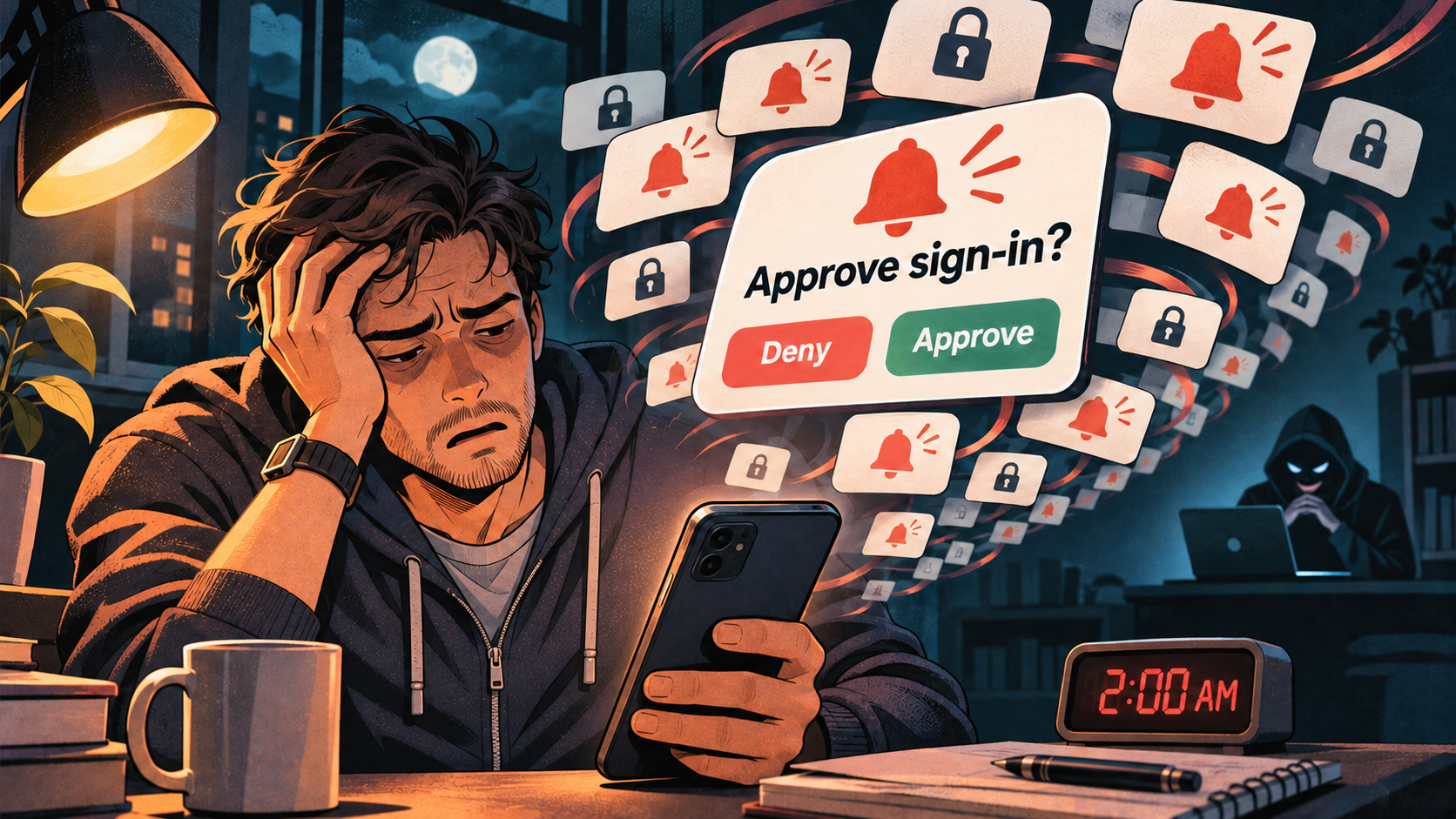
You’re on a familiar device, attempting to log into a familiar account. Then a notification appears on your phone asking you to approve the sign-in.
You click “yes,” or “approve,” and you’re into your account, feeling comforted by the extra layer of security protecting your data. That’s how it’s supposed to work in an ideal world.
Now imagine you get the same prompt at 2 a.m. and groggily approve the login. Or you’re in the middle of a busy workday, juggling meeting notifications, Slack messages, and reminders about an upcoming doctor’s appointment. You’re frantically dismissing anything that interrupts your concentration. Maybe your child is using your tablet to watch a cartoon on a long car ride and taps “Approve” on an annoying popup that’s interrupting their Bluey episode.
While the list of hypotheticals is endless, one thing is clear: By accidentally or distractedly clicking “yes” or “approve” even once, you may have just given a hacker access to your accounts. Welcome to the world of MFA fatigue attacks.
A Weapon of Mass Distraction
An MFA fatigue attack, also known as push bombing, overwhelms a target with repeated authentication requests in the hope that they’ll approve just one. The attack exploits distraction, exhaustion, or the simple desire to make the notifications stop.
If this seems unlikely, consider the following: The average person online has roughly 120 accounts, and it is likely that half of these accounts are work-related. Over 75% of them use personal devices for work. This creates a tangled web of authentication across accounts and devices that can work to a hacker’s advantage.
How MFA Fatigue Attacks Work
The attack typically begins with a hacker obtaining a valid username and password, perhaps through phishing, malware, or credential stuffing—the practice of trying stolen credentials on other accounts. This is easier than it sounds. The Dark Web is full of archives of billions of compromised accounts that can be obtained for pennies and most people reuse the same passwords across their universe of accounts.
Considering this and the fact that “123456” and “password” still top the charts as the most commonly used passwords, it’s not that heavy a lift to assume a motivated hacker can get access to your account credentials with relative ease. Poor password hygiene is one of the primary drivers of the adoption of multi-factor authentication in the first place.
With credentials in hand, the next step for a hacker is to determine what kind of MFA your account has in place. Accounts that require passcodes sent to another device or are protected by authenticator apps aren’t impregnable. However, they can require more effort than finding one that simply needs the approval of a trusted device.
Once threat actors lock onto a proper target, it’s simply a matter of bombarding them, typically through automated bots, scripts, or AI agents. If the prompt is refused 99 times BUT approved on the 100th, they’ve hit the jackpot.
How Can You Prevent MFA Fatigue Attacks?
While there are a number of multifactor alternatives that can mitigate the vulnerability posed by MFA fatigue attacks, each has its own drawback:
- Passcode authentication: Instead of protecting accounts with a simple prompt on a trusted device, many services require a passcode. The primary issues here are that it’s more time-consuming, can be prone to typos, and can be circumvented by SIM swapping or other methods.
- Rate limiting: An IT administrator or security team can simply limit the number of times a prompt can be sent to a device in a given period of time. While this eliminates the fatigue element, not every service enables it, and it creates the risk that you might be locked out of your own account.
- Physical security keys: FIDO security keys prevent this kind of push-approval attack, and a single key can protect multiple compatible accounts. The practical drawbacks are cost, service compatibility, and the need to keep a backup key or recovery method available.
When a login prompt interrupts dinner, a meeting, or an especially good episode of Bluey or Landman, take a second to ask yourself one question before you tap anything. Did you just try to sign in? If you didn’t, hit “Deny.” An unexpected prompt can mean someone already has your password, so go directly to the account and change it. If it’s a work account, let IT know. And if the same prompt wakes you up at 2 a.m., the answer should still be no.


